Follow
Default Ableton behavior. The display follows your hands – colour, name, and value appear the moment you touch a knob
M4L FOR ANY MIDI CONTROLLER
Every mapped knob gets live visual feedback – color, name, value, and range
NEW IN v1.3
Default Ableton behavior. The display follows your hands – colour, name, and value appear the moment you touch a knob
When you switch tracks, you can map all knobs to the selected track, and the same is available on every other track
PERSISTENCE
Arrange controls in your own order, set your own ranges,
and build a rack of big, readable controls
No jumping to Ableton's mapping panel — everything lives right beside the instrument you're tuning
A slot holds up to nine modulation destinations. Build a layout for drums, another for leads – a palette you reach for every session
Use the controls you already know. Focus on details
OUTCOME
Visual feedback and layer control make older controllers feel new again
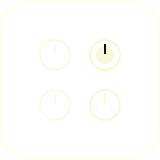
Every mapped parameter
has a full-size display

Turn tiny mixers into readable
control surfaces

Every encoder shows its
target and value
SETUP & SUPPORT
Add Dynamic Focus Input to a MIDI track. It is the input layer.
Drop Dynamic Focus Slot onto any track.
Map a knob and you're ready
Yes. This is the main feature of this product: move mappings between tracks, save them as presets, and reuse them whenever needed. You can also open them in a new Set. If a track uses the same instrument, it will work
Yes. Switch DF Input to Relative mode, and everything will work as expected
Classic Scale Pickup Mode – a control only becomes active once its physical position matches the current on-screen value. See the guide →
The UI can match the color of its track or use the built-in default Ableton skin. You can also show the instrument name front and center for easier navigation
Write to support@fadercraft.com — you get an answer within 48 hours
TECH REQUIREMENTS